iPhone companion and widgets
Pair the Tracker Trapper iPhone companion, add Home Screen widgets and choose notifications.
Join the beta
The iPhone companion is in an invite-only TestFlight beta, and it's free while the beta runs. To join, email beta [at] trackertrapper.com with the Apple ID email you use for TestFlight. After launch the companion will be $2.99/month or $24/year; the Mac app stays free.
Mobile sync needs Mac preview build 3 or later. Download it and replace any earlier copy before you pair.
Requirements: an iPhone running iOS 17 or later, Tracker Trapper running on your Mac, and an invited email address.
Pair your iPhone
- Set up your Mac once. In Terminal, point Mobile sync at the relay, sign in with your invited email, and create your Mac's sync workspace:
Settings → Companion then shows Sync Active work with my phone turned on and Paired. Turn that switch off any time: while it's off, Tracker Trapper makes no network requests for sync.TT=/Applications/TrackerTrapper.app/Contents/Helpers/tracker-trapper "$TT" companion enable --relay https://trackertrapper.com "$TT" companion sign-in --email [email protected] "$TT" companion verify --code ABCD-EFGH # the code from your email "$TT" companion create-workspace - On your iPhone, open Tracker Trapper and sign in with the same email and the code you're emailed.
- Request access, check that the match phrase is the same on both devices, and approve the phone in Settings → Companion on your Mac.
Or scan a code: choose Pair a phone on your Mac and Scan code from your Mac on your iPhone. A QR code expires after two minutes and works once. You still approve the phone on your Mac, and email sign-in stays available if you'd rather not allow camera access.
What you'll see
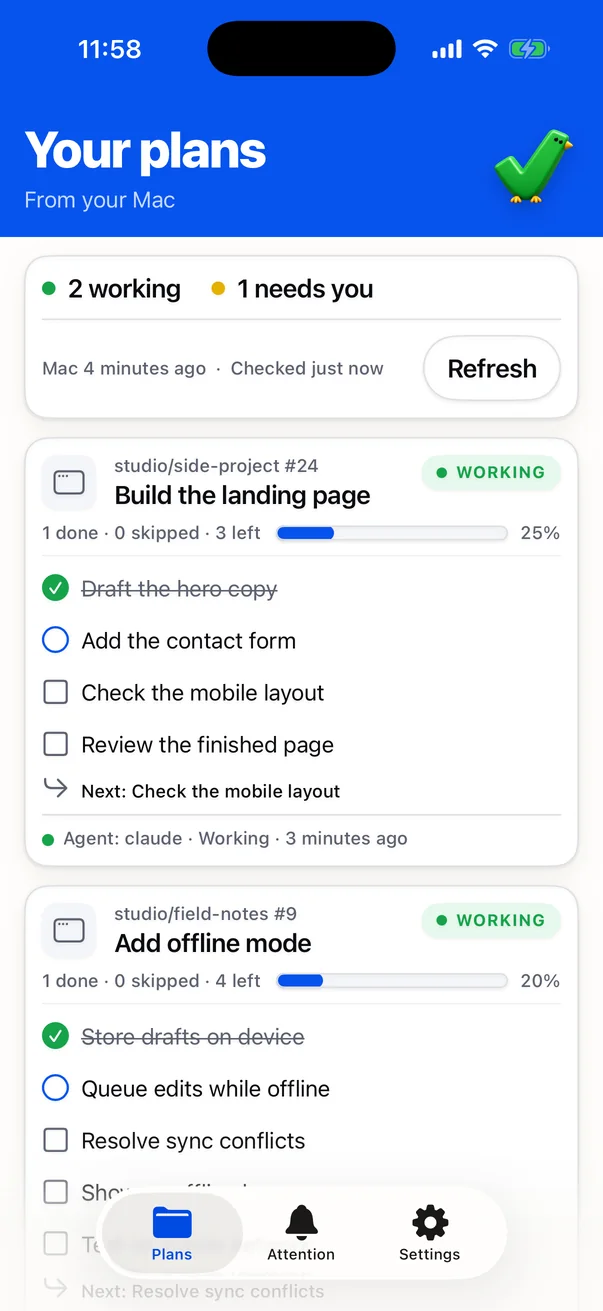
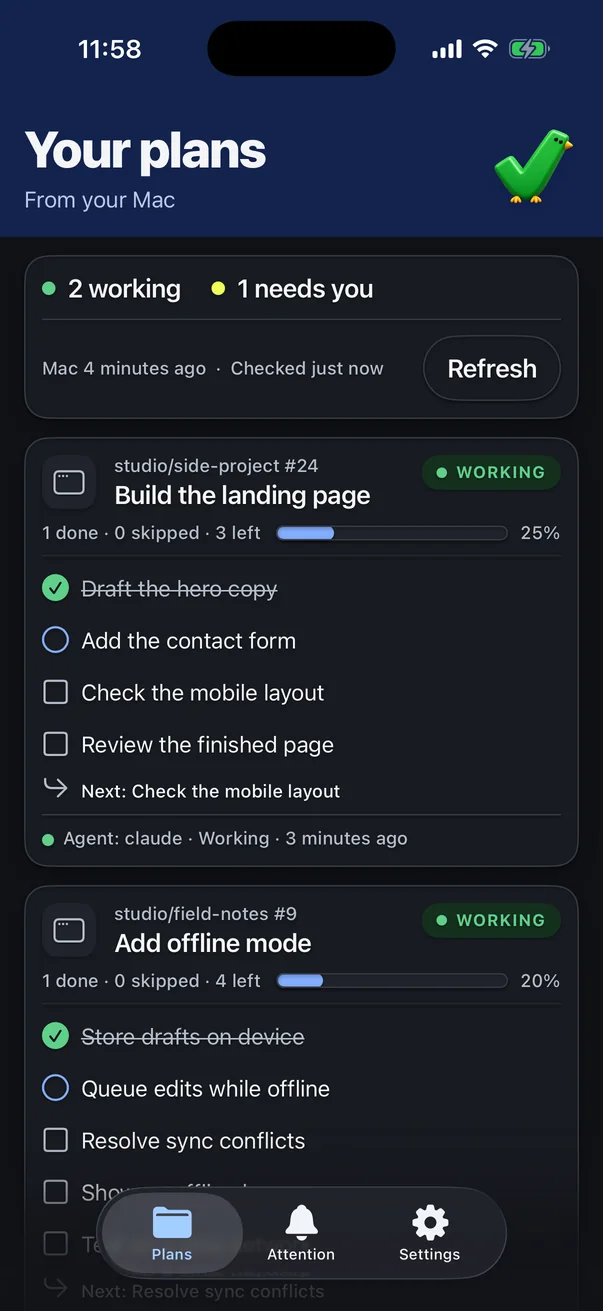
- Plans lists your Mac's Active plans, their tasks, progress, and which agents are working.
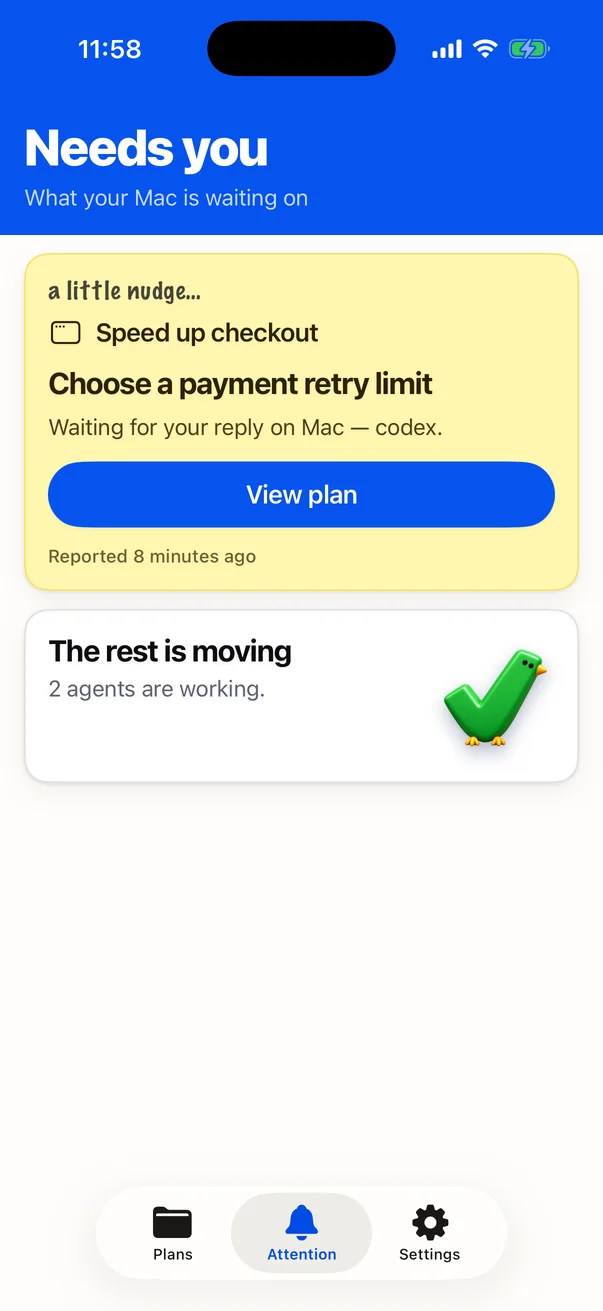
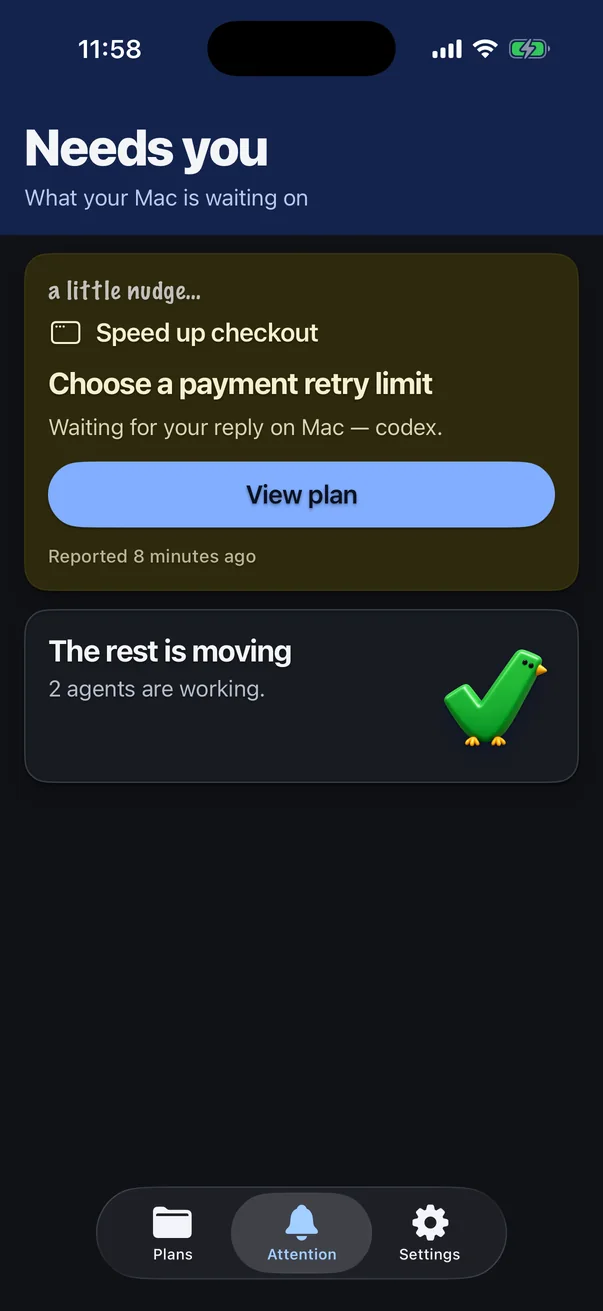
- Attention (“Needs you”) shows what your agents need from you.
- Settings shows your connected Mac, the sync interval, notifications and sign-out.
Plans appear automatically while they're Active on your Mac. A plan that's waiting on your answer stays until you reply, and finished plans stay for a while so the finish can be announced. The phone is read-only: it never edits tasks or approves agent actions. Cached plans stay readable offline.
Home Screen widgets
- Open Tracker Trapper once so it syncs.
- Touch and hold an empty area of your Home Screen, then choose Edit → Add Widget.
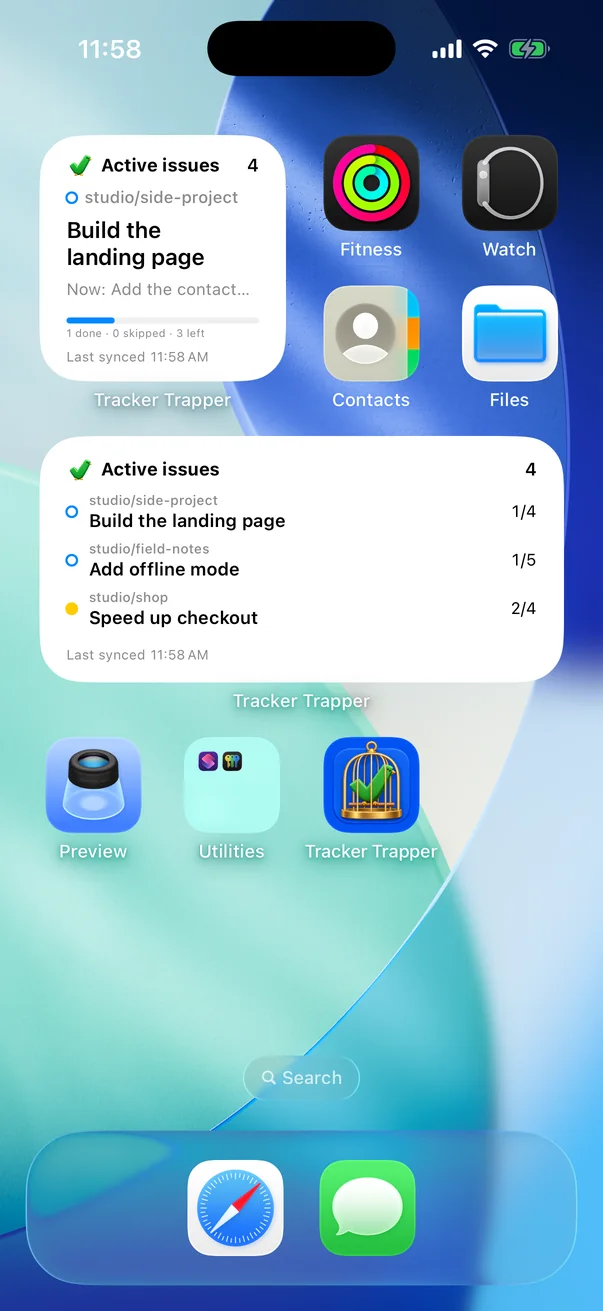
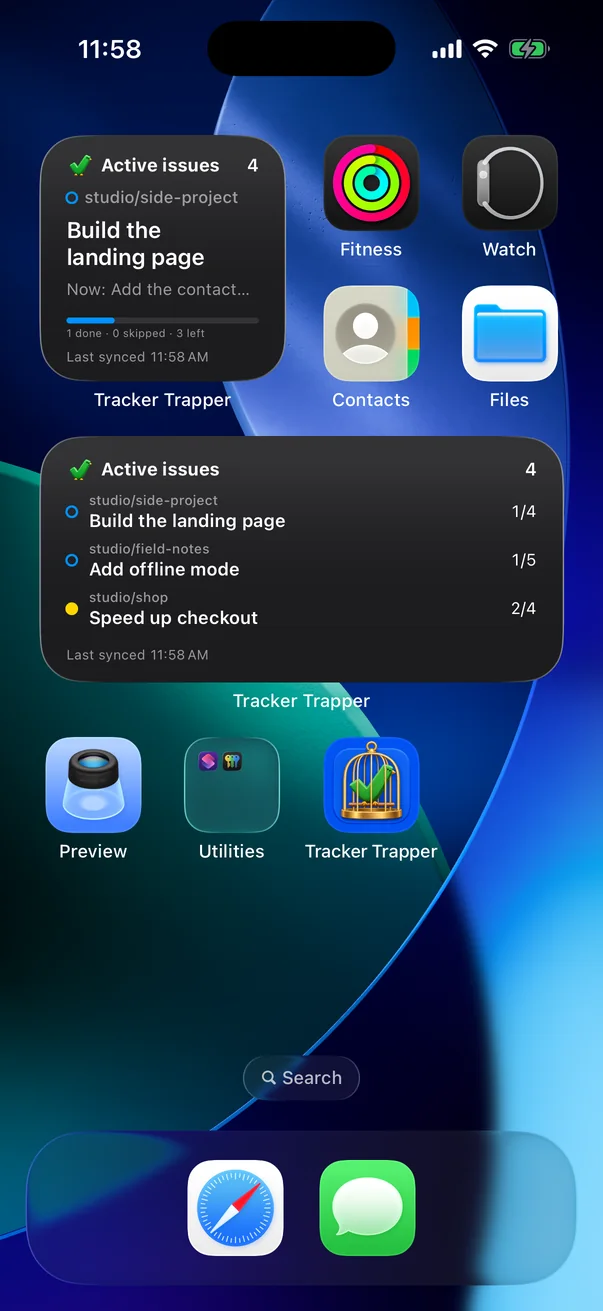
- Search for Tracker Trapper, choose Active issues, and add the small or medium size.
- Small shows the Active count, the leading plan, its current task and its progress.
- Medium shows up to three plans with their completed/total counts. A yellow dot means an agent is waiting for you.
- Tap a plan to open it, or tap the background to open the list.
Widgets show the phone's last successful sync, labeled “Last synced”. iOS decides when widgets redraw and how often background refresh runs, so open the app to get the latest. The widget never contacts the relay itself or stores credentials.
Notifications
Turn notifications on in the app's Settings → Notification settings and allow the iOS prompt. You choose what to be told about:
| Alert | When | Default |
|---|---|---|
| Waiting for you | An agent stopped and asked you something: a decision, something to check, or something to unblock. | On |
| Blocked | A task can’t continue until you do something, and says what. | On |
| Plan completed | Every task in a plan is closed. | Off |
| Task completed | A single task was completed. | Off |
Only an explicit ask counts: an agent that stops without asking you anything, or a blocked task the agent can sort out itself, doesn’t alert you. A plan that’s waiting on your answer stays on your phone until you reply, even after the agent has stopped, and the alert says what the agent needs. To keep that text off your phone, turn off Send ask text to iPhone in Settings → Companion on your Mac; the phone then only says that something needs you. The lock-screen preview is Generic by default. Switch to Detailed to see plan and task names. Opening a notification refreshes the phone first, so you see the plan as it is now. Delivery depends on your Mac publishing the change, a working connection and iOS notification settings.
Sync interval
Changes on your Mac publish right away. The automatic sync interval, which the Mac and iPhone share, controls how often the phone checks in the background. iOS may delay background and widget updates. Pull to refresh, or open the app, for the latest.
Sign out or remove a phone
Signing out, or having access revoked, clears the phone's cached plans and credentials. To remove a lost phone, revoke it from your Mac. If your QR code expired, make a new one on your Mac.